A seamless AI video loop needs its ending to continue naturally into its beginning. Similar first and last frames help, but they do not guarantee continuous motion. Check position, direction, speed, lighting, and audio across the join, then validate the repeated export rather than judging two still images.
This guide provides an original rolling-ball example, a frame-count calculation, and a practical review procedure. The illustrations show the intended motion relationship, not a completed video test. No model success rate or measured generation quality is claimed.
Read first: understand first-and-last-frame video generation and the image-to-video workflow before preparing reference assets.
Distinguish a repeating file from a seamless loop
A player can repeat almost any video. Seamlessness is a property of the transition the viewer experiences when the end returns to the beginning. A technically valid file may repeat with a visible jump, a short pause, an exposure flash, or an audible click.
There are two separate places to investigate. The content may contain a discontinuity, or the playback system may insert a delay. If a joined timeline looks smooth but the embedded player pauses, repeatedly regenerating the scene is unlikely to diagnose the right problem.
Create a local review sequence containing several back-to-back copies of the exported clip. Watch the joins without relying on the player’s automatic restart behavior. Then test the intended playback environment separately. This separates the creative edit from delivery behavior without assuming either one is already correct.
Inspect a neighborhood of frames around the join
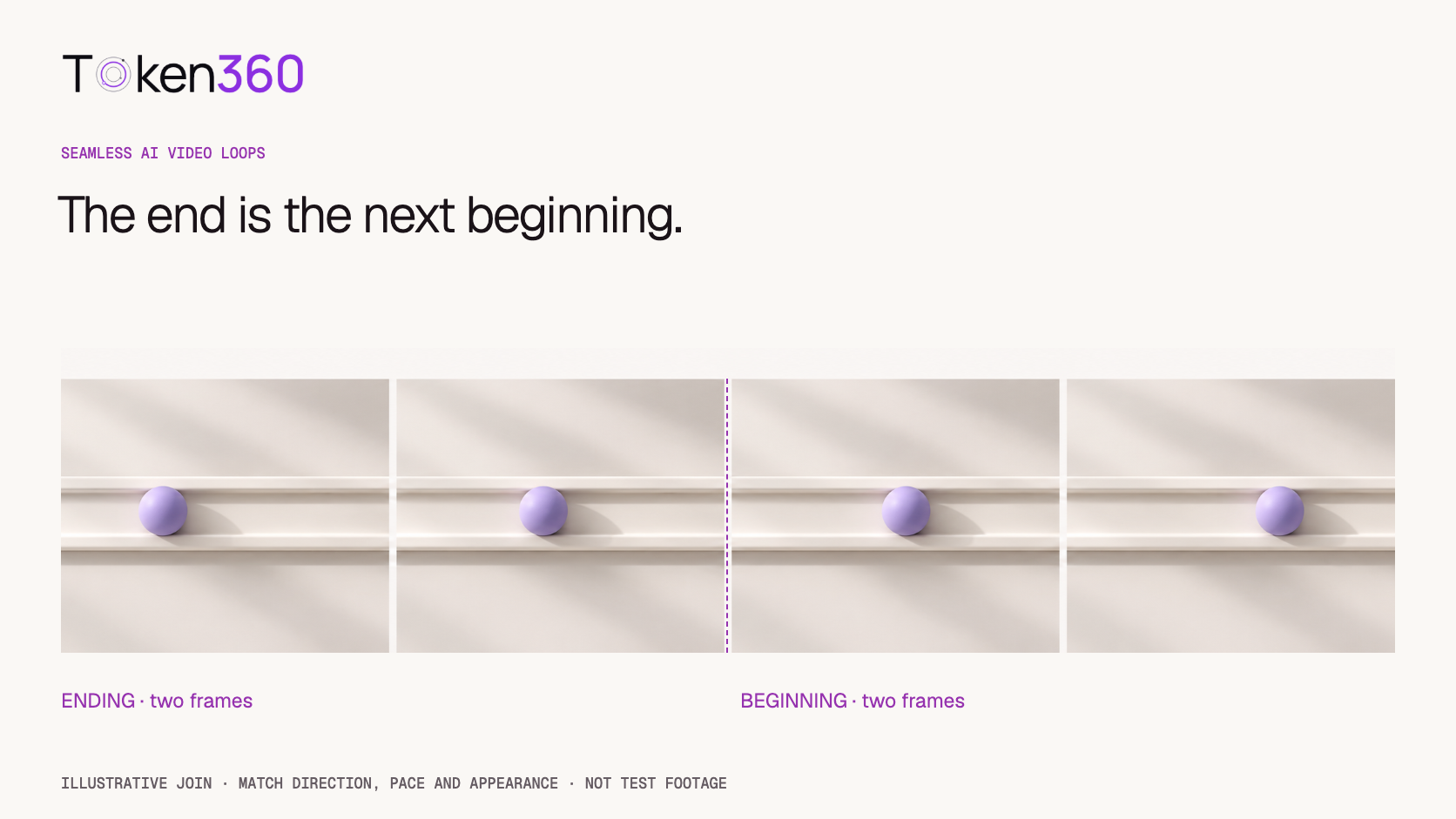
Imagine a lavender ball traveling clockwise around an ivory track. At the front of the track, the camera sees a short section of its path. The cover illustrates two frames before the join and two after it. The ball should continue in the same direction with plausible spacing between successive positions.
Looking only at the first and last images misses that spacing. A ball can occupy the same location at both endpoints but arrive quickly and depart slowly. It can reverse direction or pause. Its shadow can jump even when its center does not.
| Continuity dimension | Look for at the join | Typical visible failure |
|---|
| Position and shape | The subject continues to the next plausible pose. | Teleporting, size changes, or altered geometry. |
| Direction | Motion continues along the intended path. | An unexplained reversal. |
| Speed | Frame-to-frame displacement remains compatible. | A hitch, sudden acceleration, or stop. |
| Appearance | Lighting, color, and background remain stable. | A flash, texture change, or moving shadow. |
| Audio | The sound continues or ends intentionally. | A click, cut-off tail, or recurring gap. |
These checks are editorial criteria. They do not require every pixel to match. Natural motion produces changing pixels; the goal is a plausible next moment when the sequence wraps around.
Understand why identical endpoints can create a pause
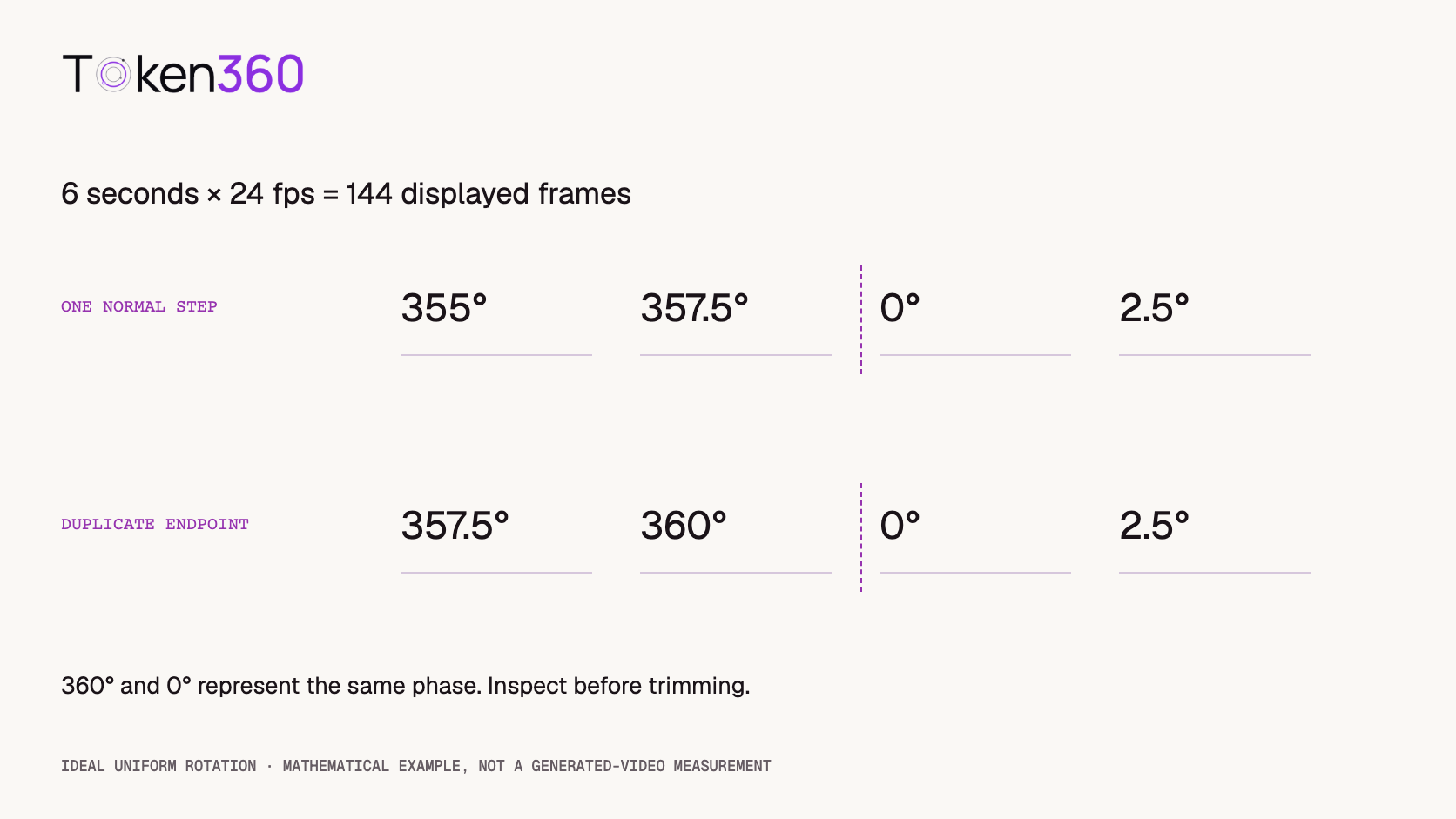
Consider an ideal constant-frame-rate animation lasting six seconds at 24 frames per second. It contains 144 displayed frames. For one uniform revolution, a mathematical animation can sample the cycle at phases 0/144 through 143/144. The next frame after the last is phase 0 of the next cycle.
Duration: 6 seconds
Frame rate: 24 frames/second
Displayed frames: 6 × 24 = 144
Uniform phase step: 360° / 144 = 2.5°
Sampled angles: 0°, 2.5°, …, 357.5°
Next cycle begins: 0° (= 360°)
The last displayed orientation is therefore not identical to the first. It is one normal motion step before it. If a sequence instead displays an extra endpoint at 360° and then immediately displays 0°, the same phase appears twice at the boundary and can introduce a brief hold.
This is a synthetic timing example, not a description of how a video model samples motion. Real generated clips may have irregular speed, approximate endpoints, or variable timestamps. Inspect the actual frames before removing anything. Deleting the final frame automatically can create a jump when it was not a duplicate.
Use endpoint references as constraints, not proof
Some generation workflows accept both starting and ending images. Google documents first-and-last-frame video generation for supported models. The capability helps specify endpoint appearance, but two images alone do not fully specify the speed or direction of motion approaching them.
Check the exact route before preparing a request. Token360’s model capabilities documentation identifies the selected model page and schema as the source of truth. Do not assume every video model accepts two references, uses the same field names, or supports a universal loop switch.
If using the same reference at both ends is supported, treat it as a candidate strategy. Review whether the model holds still, changes direction, or slows down to meet the endpoint. A visually similar endpoint can be useful while the resulting motion still needs editing.
Write a motion brief that can return to its start
Choose an action with a plausible cycle. A ball completing a circuit is easier to describe cyclically than a ball falling off a table. The second action needs a new event to restore the original scene; reversing it may look like an intentional effect rather than natural motion.
The following original prompt describes the intended behavior. It has not been tested and does not imply that an exact revolution count or speed can be enforced through prose.
A single pale-lavender ball travels clockwise around a smooth circular ivory track. The camera remains fixed. The ball completes one continuous circuit and continues through its starting position at a steady pace. The ball keeps the same size and shape. Soft daylight, the track, and the background remain stable throughout. The motion should feel continuous when the clip repeats.
Choose a supported duration and output format in the model controls. If endpoint references are available, use consistent images and describe the motion between them. Do not add an unsupported parameter because the prompt contains the word “loop.”
Start with one moving element and a fixed camera. After a satisfactory cycle exists, consider additional movement. Camera motion, changing light, animated backgrounds, and audio each introduce another boundary that must connect.
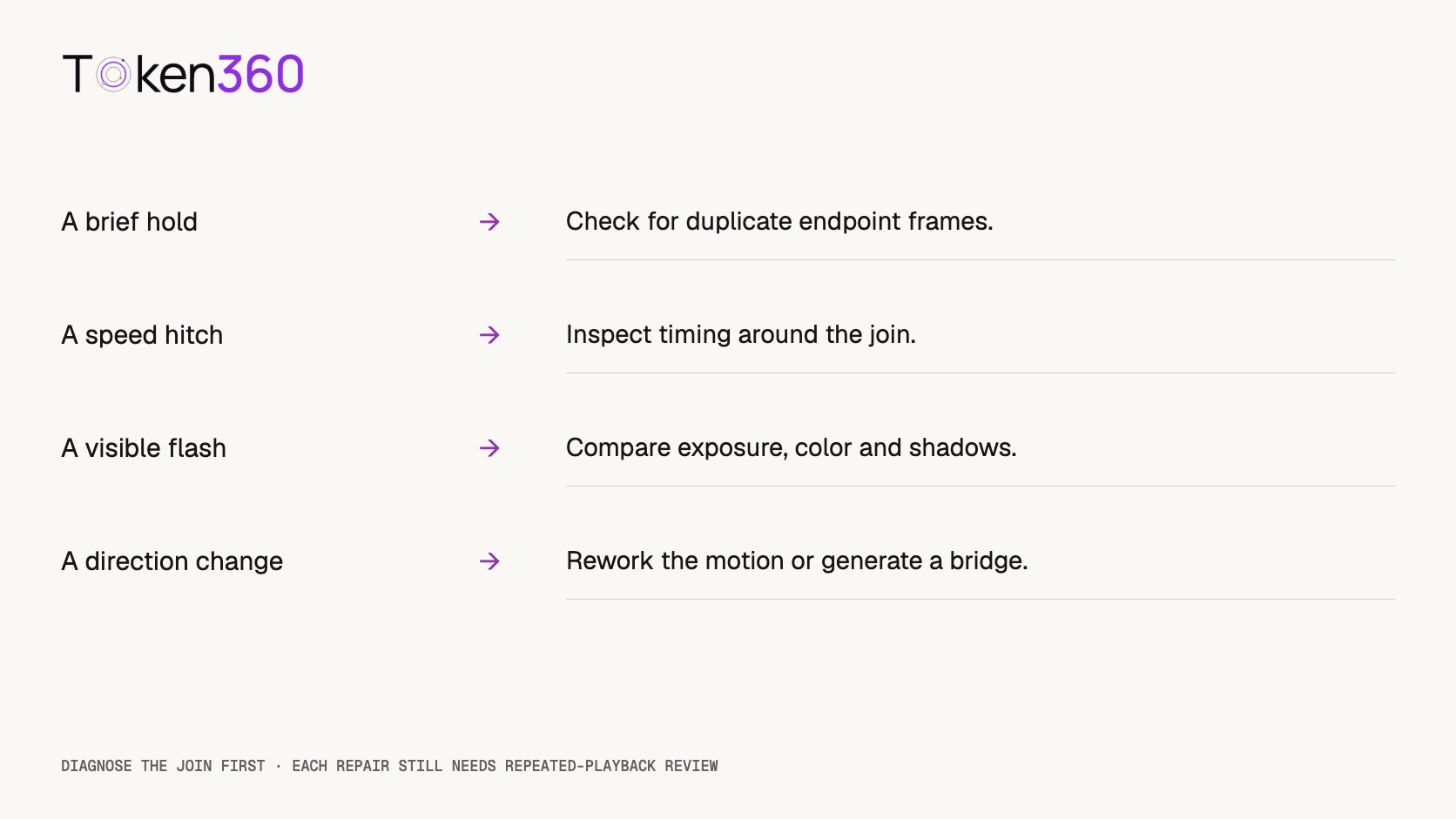
Choose a repair based on the failure
Trim to a better phase: inspect nearby frames for a more compatible transition. This can shorten the loop and change its rhythm. Record the actual exported duration after trimming rather than continuing to describe the original length.
Adjust timing: a small speed change may help compatible poses connect, but substantial retiming can introduce uneven motion or interpolation artifacts. Compare the repaired join with the surrounding action, not only the two boundary frames.
Blend the boundary: a crossfade can soften appearance differences, especially in some diffuse textures. With a distinct ball, it can create two semi-transparent balls or an obvious dissolve. A hidden cut is not automatically a physically continuous action.
Generate a bridge: use a supported workflow to connect the ending back to the beginning. Adobe’s looping-video tutorial demonstrates exporting reference frames, generating a connecting segment, and refining its timing in an editor. This is a workflow example, not evidence that every scene can be repaired reliably.
Regenerate the motion: if the direction or geometry changes substantially, a new candidate with a simpler action may be more appropriate. Preserve the rejected output and its failure note so the next comparison has a clear purpose.
Review the repeated export with and without audio
For a proposed review, place three copies of the finished export back to back. A six-second clip creates an eighteen-second review sequence with two internal joins. These numbers describe the review layout, not a completed test or a universal minimum for approval.
First watch at normal speed with sound muted. Note any interruption without scrubbing. Then inspect the frames around each suspected boundary. Finally listen with audio enabled and check the sound independently. A visually smooth loop can still contain an abrupt ambience change or a clipped musical phrase.
If audio is unnecessary, deliver an intentionally silent asset using supported controls or editing. Verify the exported file instead of assuming a prompt requesting silence removed its audio track. If audio is needed, choose or edit a suitable loop and review the seam by listening; a visually matching waveform boundary is not the whole acceptance test.
Record the candidate ID, exact model, prompt version, reference assets, export settings, any trims or timing edits, and observations for each continuity dimension. Separate “generated successfully” from “accepted as a loop.” Report only the candidates actually reviewed if you later publish results.
Keep one repair from hiding another problem
A loop can become technically smoother while losing its intended feel. A long dissolve may conceal a jump but soften the subject. A long hold may conceal a speed mismatch but make the animation feel stalled. A reverse-playback segment can connect positions while making smoke, water, or gravity look implausible.
Define acceptance before editing: the ball should move continuously clockwise, remain a single object, preserve its shape, and maintain stable lighting. If a repair violates one of those conditions, describe the trade-off rather than calling the result seamless without qualification.
Review at the final display size and in the actual destination. Compression, resizing, or player behavior can make a previously subtle seam noticeable. Keep the approved export separate from intermediate candidates so the correct version reaches publication.
Frequently asked questions
Do identical first and last frames guarantee a seamless loop?
No. They do not establish matching direction, speed, lighting, or audio. Inspect several frames on each side of the join and watch repeated playback at normal speed.
Should I always delete the last frame?
No. Remove a frame only after confirming that it creates an unwanted duplicate hold or another specific problem. A valid final motion sample may be necessary for a smooth transition.
Can I use the same reference image at both endpoints?
Only where the exact model and route support the required inputs. It can help constrain appearance, but the generated motion still needs review and may slow down, pause, or change direction.
Is a crossfade enough to make a loop?
Sometimes it creates an acceptable transition, but it can introduce ghosting or a visible dissolve. Evaluate it against the subject and intended motion instead of treating it as a universal repair.
Why does my loop pause only on the website?
The player or delivery path may be adding a delay. Compare a timeline with adjacent copies of the export against the website playback before assuming the generated content needs another revision.
How should I test a loop with audio?
Review picture and sound separately, then together. Listen across repeated joins for clicks, cut-off tails, gaps, or abrupt changes. Validate the final exported file rather than only the editing timeline.
Read next: use the AI model evaluation framework for explicit acceptance criteria, and video API cost optimization when deciding whether another candidate is justified.


 Prompt Guide
 Prompt Guide
 Prompt Guide