To make AI video look slow, describe a readable action unfolding gradually. To make an existing clip play slower, change its playback timing in an editor. These are different operations. Increasing an export’s frame rate alone does not necessarily slow the action or add genuine motion detail.
This guide separates motion instructions from file settings and post-production. It includes an original silk-ribbon prompt, worked frame-count examples, and a small comparison plan. The calculations are illustrative; no video generation or retiming experiment was performed for this article.
Read first: use the text-to-video workflow to structure a request, or the image-to-video workflow when an approved reference establishes the subject.
Separate three controls before changing anything
“Slow motion” can describe the appearance of an action, the interpretation of source frames, or a speed effect applied to a clip. Confusing these controls makes a test difficult to evaluate. Decide whether the problem is an action that moves too quickly, a clip that is too short for the edit, or playback that appears uneven.
| Control | What changes | What it does not establish |
|---|
| Motion prompt | The requested pace and progression of the generated action. | A guaranteed output frame rate or exact speed ratio. |
| Output or export frame rate | The number of frames presented per second under the chosen timing. | That the action becomes slower or that all frames contain new motion information. |
| Retiming | How source time maps to playback time. | That missing detail, correct anatomy, or stable geometry can be recovered. |
For example, a ribbon can fall gradually in a 24 fps file. A 60 fps file can show a fast fall. Frame rate describes temporal presentation; the motion inside those frames still needs to be inspected.
Prompt the action, not just the label
Start with one subject and one visible movement. Describe which part moves, its direction, and how it progresses. “Slow motion” may be useful as a style cue, but a specific action gives you something concrete to evaluate.
Runway’s Gen-4 prompting guide separates subject, camera, and scene motion and recommends clear visual descriptions. Apply that advice within the model family it documents; it does not guarantee identical behavior across other models.
For an initial test, keep the camera fixed and the background quiet. This makes it easier to distinguish subject movement from a camera drift. After the movement works, introduce additional camera or environmental changes as separate variations.
A single ivory silk ribbon with pale-lavender edges drifts slowly downward through still air. Its broad folds open gradually as the free tip descends. Both edges remain continuous and the fabric keeps a consistent width. A fixed camera holds a medium view against a softly lit ivory background. The movement continues gently throughout the shot.
This is an original proposed prompt, not a validated model recipe. The cover is an illustration of the scene, not a frame extracted from a generated test. If using image-to-video, preserve the same reference file across comparisons and keep the motion instruction focused on the intended change.
Keep slow movement visibly alive
A clip that barely changes can resemble a still image rather than intentional slow motion. Give the reviewer a visible event: the ribbon tip descends, a fold opens, or a fabric edge turns toward the light. Avoid asking for several unrelated actions in the same short shot.
Define a starting state and a later state in your review notes. For the ribbon, the tip could begin above the lower third and finish lower in the frame while remaining visible. This is an editorial criterion, not a promise that prose coordinates will be followed exactly.
Do not combine conflicting pace instructions such as “barely moves” and “rapidly whips around” unless the transition is intentional and clearly described. If the output freezes, first simplify the movement and strengthen the visible progression. Adding a higher frame-rate number to the prompt does not diagnose the cause of the freeze.
Watch at normal playback speed before scrubbing. Frame-by-frame inspection can reveal defects, but it cannot by itself establish whether a slow movement feels continuous to a viewer. Preserve both observations in the review record.
Check which frame-rate controls actually exist
Consult the exact model schema before adding an fps parameter. Some routes expose frame-rate options, others return a fixed format, and some settings belong only to the editor or export stage. Token360’s model capabilities documentation makes the selected model’s supported parameters the relevant reference.
A phrase such as “shot at 120 fps” inside a prompt is not proof that a returned file contains 120 distinct frames per second. Treat it as a creative instruction unless the documented API setting and actual output establish something more specific.
Record the requested configuration and inspect the downloaded media’s duration, frame timing, and frame rate. Metadata can describe the file’s presentation without proving how much unique temporal detail it contains. Do not label a generated asset as high-speed camera footage solely because of its prompt or nominal frame rate.
Use frame-count arithmetic to understand retiming
Consider a hypothetical constant-frame-rate clip containing 120 frames over five seconds at 24 fps. If every source frame is played once at 12 fps, it lasts ten seconds. If it is exported at 60 fps while preserving its five-second duration, the export contains 300 presentation frames; the action has not become slower merely because that count increased.
Adobe’s clip frame-rate documentation explains that changing footage interpretation affects playback duration. This is different from keeping a timeline’s timing and converting its output frame rate.
| Hypothetical operation | Calculation | Meaning |
|---|
| Original clip | 5 seconds × 24 fps = 120 frames | The starting timing and frame count. |
| Play each original frame once at 12 fps | 120 ÷ 12 = 10 seconds | The action takes twice as long. |
| Preserve five seconds; export at 60 fps | 5 × 60 = 300 output frames | More presentation frames, unchanged duration. |
| Half-speed edit delivered at 24 fps | 10 × 24 = 240 output frames | The editor must fill presentation times between the 120 source frames. |
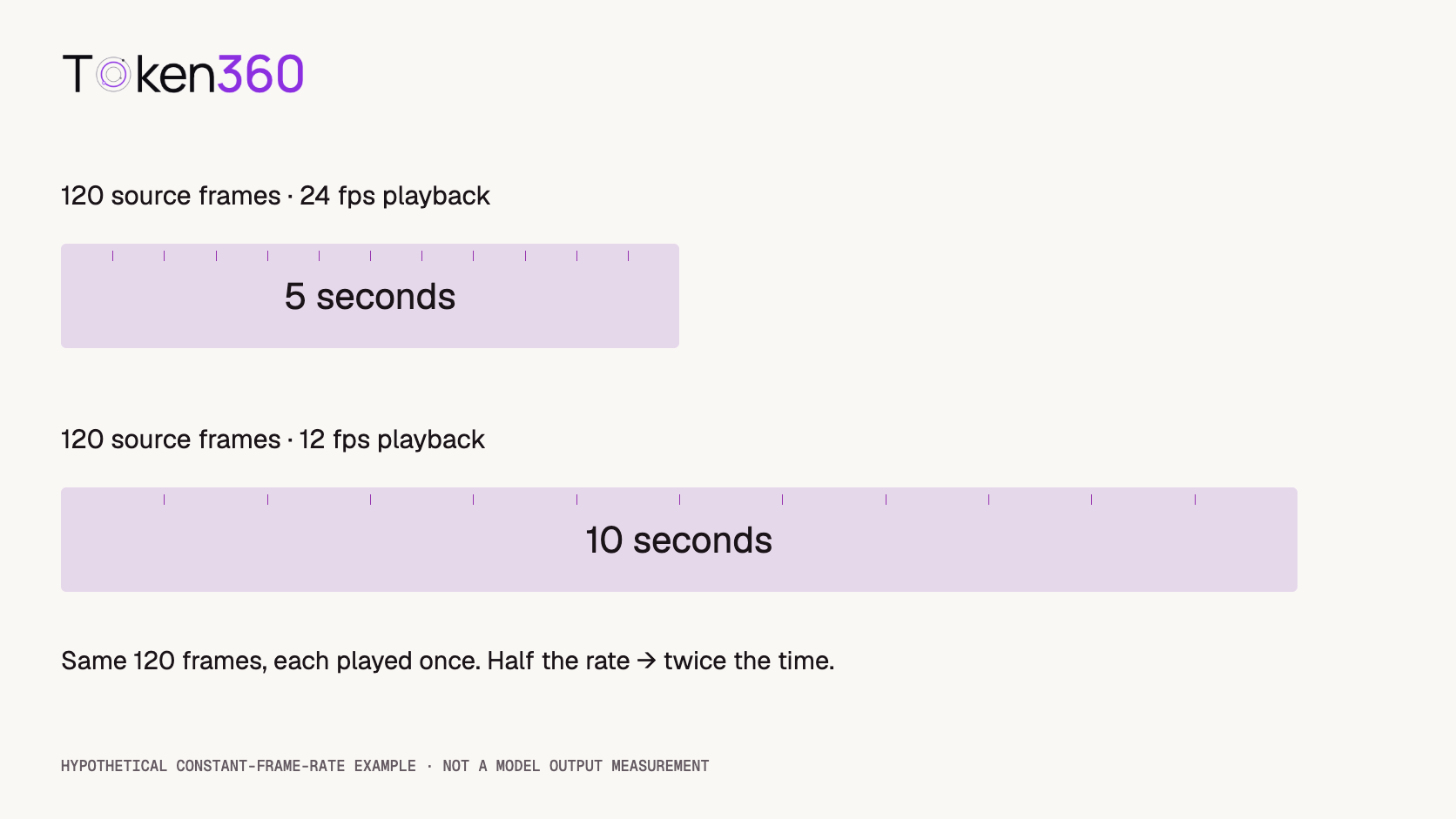
These examples assume exact integer rates and constant timing. They are not measurements of a Token360 output. Variable-frame-rate files and rates such as 23.976 require the actual timestamps and project settings rather than rounding them to a convenient integer.
Choose interpolation after reviewing the source
At half speed, a 24 fps delivery needs additional presentation frames. An editor can repeat existing frames, blend adjacent images, or estimate intermediate motion. Adobe documents these choices as Frame Sampling, Frame Blending, and Optical Flow.
For the ribbon example, inspect the thin edges and folds after retiming. Repeated frames may reveal stepping; blended images may show overlapping edges; estimated motion may distort areas where one fold passes in front of another. These are review targets, not results observed in this article.
An interpolation method can improve perceived smoothness without reconstructing the true physical motion of a scene. If a ribbon changes width or splits in the source, slowing it down can make that problem more noticeable. Compare the source and processed export at the same visible event before deciding which stage introduced the defect.
Render a short representative section before applying a heavy effect to the full edit. Check the exported file as well as the editor preview. Keep the original untouched so you can compare alternatives or return to the unprocessed candidate.
Run a small comparison with clear conditions
A practical exploratory plan uses two prompt conditions: a neutral movement description and the same scene with explicit gradual progression. Generate two candidates per condition while holding the model, reference, and supported settings fixed. That is four proposed generation requests, not four completed tests.
Retain every outcome, including failures and rejected clips. Review all available candidates at their original playback speed before selecting one for a separate half-speed editing comparison. Keep a record of why that candidate was selected so the editing demonstration is not mistaken for an average result.
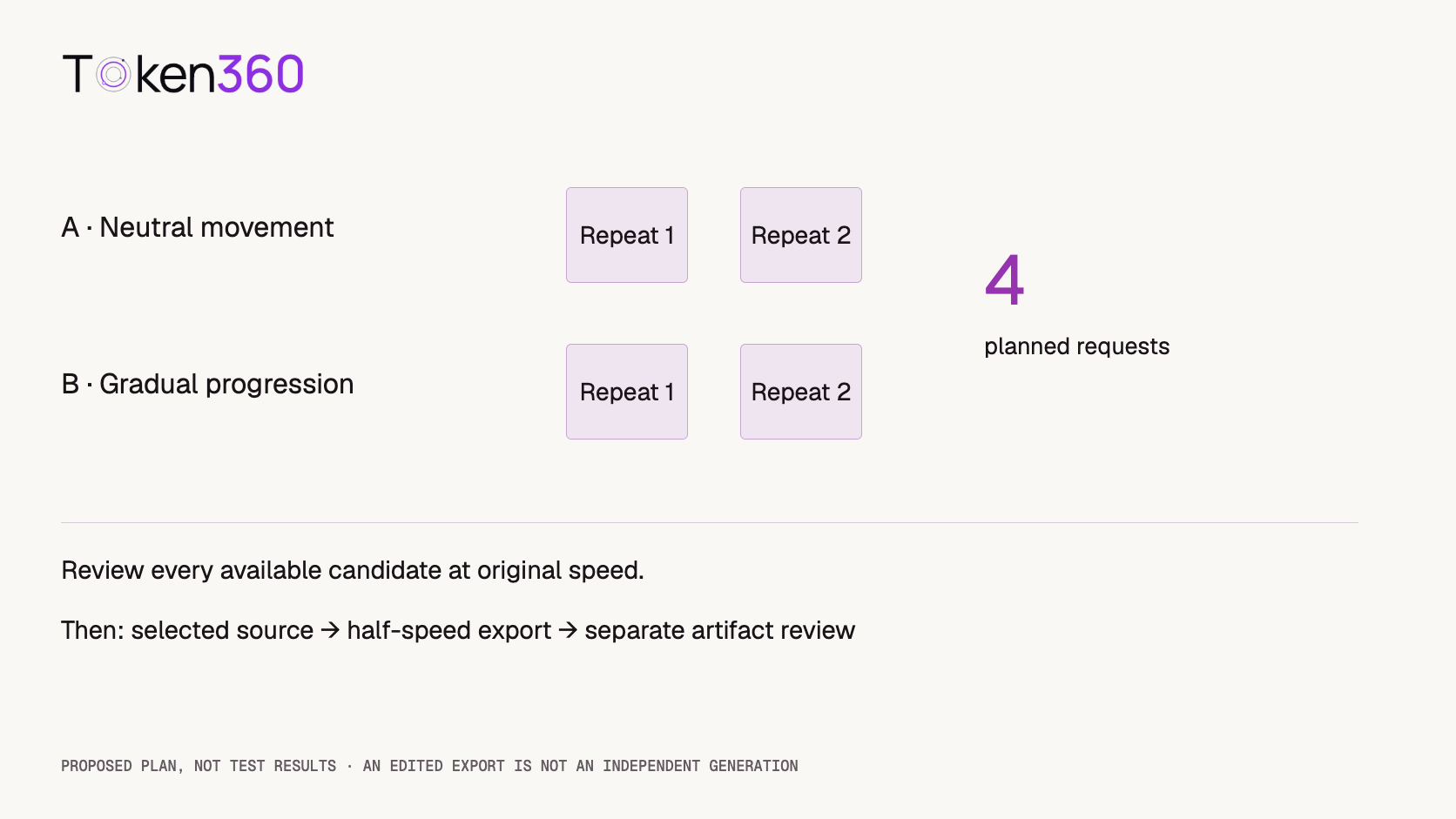
Score the same properties for both prompt conditions: visible progression, continuity of the ribbon edges, stable camera framing, and suitability for the intended edit. A simple pass, fail, or uncertain label is useful when the criterion is written down before reviewing the results.
Compare the selected source with its retimed export for pacing, stepping, ghosting, and shape changes. Do not count that export as another independent model generation. The proposed sample is small and exploratory; it cannot establish a model-wide success rate or prove that the prompt caused every observed difference.
Decide whether to revise the prompt or edit the clip
If the action itself is wrong, revise the instruction or reference and generate a new candidate. If the action is coherent but too fast for the edit, test retiming. If the clip already has slow movement but poor frame continuity, inspect the original and the export pipeline before requesting another version.
Keep audio on a separate review track. Retiming can change its duration, pitch, or synchronization depending on the editor settings. For a silent fabric shot this may be irrelevant; for speech or an impact synchronized with the image, it becomes part of acceptance.
Report what was generated and what was changed afterward. “Generated with a gradual-motion prompt, then edited to half speed” is more informative than claiming that the model produced a high-frame-rate slow-motion recording.
Frequently asked questions
How do I prompt slow motion in AI video?
Describe one visible action unfolding gradually, with a clear direction and stable scene. Use “slow motion” as supporting language and review the resulting movement rather than assuming the phrase guarantees a specific speed.
Does exporting AI video at 60 fps make it slower?
No, not when the original duration is preserved. The export uses more presentation frames, but a five-second action still lasts five seconds. Retiming changes the action’s playback duration.
Can a 24 fps AI video show slow movement?
Yes. The subject can move gradually within a 24 fps file. Whether the result looks smooth depends on the actual sequence, motion, and playback—not only the frame-rate label.
Does optical flow fix a malformed generated subject?
It is not a geometry-repair guarantee. Review the source first, then inspect the processed output for new distortions, especially around crossing edges and occlusions.
Should I add an fps field to every video API request?
No. Use only parameters supported by the exact model and route. Prompt wording, API output settings, and editor export settings are separate controls.
How much longer is a clip at half speed?
For a uniform speed change with no trimming, duration doubles: five seconds becomes ten. The output frame count and interpolation needs depend on the delivery frame rate.
Read next: use the model evaluation framework to formalize review criteria and video cost optimization to budget new candidates separately from editing work.



 Prompt Guide
 Prompt Guide
 Prompt Guide