Evaluate a video background removal API on the full moving clip and the file your editor actually receives. A clean still frame is not enough. The subject's edges must remain usable through motion and occlusion, and the output must support the compositing workflow you are buying it for.
A brand may already have an approved product demonstration but want to reuse the same take against several campaign backdrops. An agency may need a presenter isolated from a distracting room. In both cases, the asset to preserve is the existing performance or product motion. Generating a similar-looking replacement take is a different purchase.
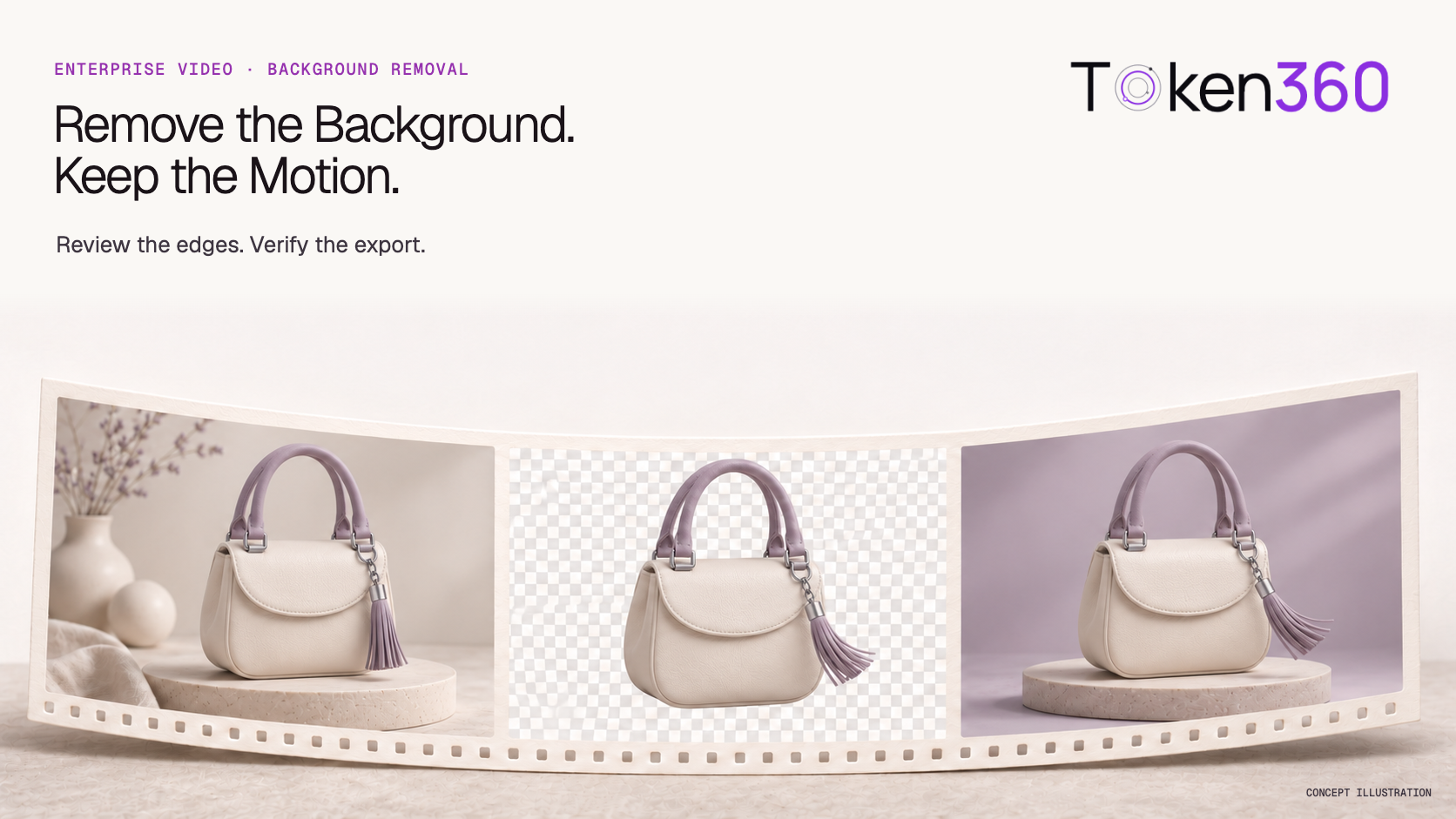
This guide proposes a pilot and acceptance method. It does not report a completed background-removal test. Token360's availability for a particular video-matting route, transparency format or subject-preservation control remains to be confirmed. The cover is a concept illustration, not a result from that route.
Are you buying a reusable cutout or a finished background swap?
Choose the deliverable before choosing the model: a reusable foreground cutout, a mask that an editor applies to the source, or a finished video with a replacement background. These are different outputs. A finished background swap may look correct but give the buyer no reusable transparency for the next campaign.
fal's Bria video background-removal documentation exposes a video-processing endpoint. Higgsfield's background-remover page describes isolating a subject through a clip for later compositing. Those pages establish the workflow category, not the quality of your footage or equivalent availability on Token360. They were reviewed on November 24, 2026.
Ask the supplier to identify the returned asset precisely. Alpha information describes transparency; a separate matte is a mask used to control which parts of the original remain visible. Neither should be confused with a flattened movie that merely shows a solid-colored background. A checkerboard in a preview is also not proof that the downloaded file carries transparency.
For a single still image, use the separate image background-removal evaluation. Video adds an acceptance requirement that a photograph cannot demonstrate: the cutout must stay coherent over time. The goal here is to retain the same subject, not perform the product replacement operation discussed in another guide.
If the subject and scene should remain while an unwanted prop disappears, use the video object-removal evaluation guide to inspect reconstructed surfaces, shadows and continuity. A reusable foreground cutout does not by itself deliver that cleanup.
Which moments should the pilot include?
Choose clips containing the movements and edge conditions your production actually needs. Include subject rotation, motion blur, fine details and objects crossing the subject where relevant. Do not base acceptance on a still pose against a clean wall if the intended workload contains hands, loose fabric or products moving across a busy background.
Proposed inspection cases—not measured failure rates
| Moment in the source | What to watch for | Why it matters |
|---|
| A tassel or hair moves | Fine strands disappear or the boundary pulses | A still cutout can conceal temporal instability |
| A hand crosses the product | Hand or product fragments are removed | The intended foreground may include both |
| The subject turns | Newly visible edges enter late or retain background | The cutout must work beyond the opening view |
| A transparent or reflective part moves | The old scene remains visible or the part becomes opaque | A new backdrop may expose extraction problems |
| A scene cut occurs | Selection follows the wrong subject after the cut | A multi-shot file may need shot-level handling |
Define the foreground explicitly. In a demonstration, should the operator's hands remain? Is a display stand part of the deliverable? What about a shadow on the original table? “Remove the background” does not settle these creative choices. Record them before judging the result, rather than changing the requirement after seeing what the model selected.
Start with a representative short section to establish feasibility, then validate the full intended clip. A short pilot does not establish maximum supported duration or quality over a longer sequence. Keep the original file and document any trimming, resizing or transcoding performed before submission so the comparison remains meaningful.
How do you review edges across time?
Watch the complete result at normal speed, then inspect difficult intervals more closely against the source. Check whether edges flicker, foreground parts vanish or old-background color remains around the subject. Review the cutout over contrasting test backgrounds and the intended destination scene; one preview background can hide defects that another makes obvious.
Normal-speed playback reveals distracting boundary movement and momentary holes. Pausing or stepping through frames helps locate the cause. Use both, and record the method: checking frames at intervals is not a full continuous-motion inspection. This article has not performed either kind of test on a Token360 result.
Distinguish three review questions. First, did the workflow retain the required subject and remove the unwanted region? Second, is the boundary stable over time? Third, does the foreground sit credibly in the new scene? A clean outline does not resolve mismatched perspective, lighting or a missing contact shadow.
Do not demand uniformly hard edges. Motion blur and translucent materials may need partial transparency to look natural. The reviewer should compare them with the source and intended composite, not assume that the sharpest-looking mask is the most faithful one.
Use the video-cutout review sheet (template below) to record time ranges, affected details, review background and repair decisions. Retain rejected outputs as well as accepted ones. If a defect appears only during one hand movement, identify that interval instead of describing the whole clip as “bad quality.”
How do you verify the exported file in your editor?
Import the actual downloaded output into the destination editor and composite it over another layer. Confirm that transparency works, the clip aligns with the source and the expected audio is present or deliberately supplied separately. A successful website preview does not establish that the export is usable in your team's finishing environment.
Request the output format and codec together, along with how transparency is stored. Do not infer alpha support solely from a filename extension. If the delivery is a separate matte, check that it matches the original's dimensions, timing and frame alignment, and that your editor interprets its black and white regions as intended.
Compare duration, frame rate, dimensions and the beginning and end of the clip with the approved source. If processing changes timing, the existing soundtrack or edit may no longer align. Verify dialogue and sound against playback rather than treating the existence of an audio stream as proof that the sound is correct.
Test the final export as well as the intermediate cutout. A workflow can retain transparency in an editing project but flatten it during delivery. That may be correct for a finished advertisement; it is wrong if the client bought a reusable foreground master. Write both deliverables into the brief when both are needed.
Separate extraction repairs from creative finishing. Removing a leftover border is a different task from relighting the subject or creating a new shadow. Count that work when evaluating a workflow. For broader file checks, use the existing video-output validation guide rather than treating this article as a replacement for technical delivery review.
What should Token360 confirm before you commit volume?
Ask Token360 to confirm a supported route for the exact source footage and output contract before buying production volume. Specify foreground selection, clip length, resolution, transparency delivery and the editor used for acceptance. General video-model access does not establish a dedicated background-removal service or guarantee that the existing performance will remain unchanged.
Token360 focuses on enterprise model procurement across text, image, audio and video. For this request, the relevant purchase is processing approved footage, not creating new footage. Provide a representative sample you are authorized to share and the acceptance checklist so the availability discussion concerns the actual job.
- Supported operation: Confirm the model and endpoint, supported subject types, file limits and whether selection controls exist.
- Delivery: Agree whether you receive a cutout, a separate matte, a finished composite or multiple assets. Verify those files in the chosen editor.
- Commercial scope: Establish the billing unit, eligible settings and treatment of failed jobs, reruns and visually rejected outputs. Do not assume visual rejection creates an automatic credit.
- Handling requirements: For unreleased campaigns or identifiable people, confirm the engagement's asset-access and retention requirements before upload.
Token360 uses tiered enterprise quotes, with lower quoted rates at higher usage, and does not charge a separate service fee. No per-second price, duration allowance or revision entitlement is established here. The quote should define which workload qualifies and what processing is included.
For the pilot, track processing charges alongside manual cleanup, compositing and review work. Record accepted deliverables, not merely completed API jobs. If every difficult interval requires extensive repair, a conventional masking workflow, cleaner source footage or a different production approach may be more appropriate.
Scale only after the team can use the returned files in its real finishing workflow and explain which types of shot remain outside acceptance. Company background is available on Token360's About page; a scoped pilot and quote still need to establish the specific background-removal capability.
Frequently asked questions
Does a checkerboard preview prove that the video has transparency?
No. Inspect the returned file and import it into the intended editor. A checkerboard can be part of the visible image rather than a usable alpha channel. Confirm whether the delivery is a transparent video, a separate matte or a finished background replacement.
Can we approve a video cutout from a single frame?
No. Review continuous playback as well as difficult moments such as occlusion, blur and fine edges. A clean still frame does not establish stable boundaries across the clip.
Does background removal preserve the original sound?
Confirm audio handling explicitly. Inspect the final file’s duration and audio against the source, and agree whether the supplier returns audio or the editor must restore it. This article does not establish automatic audio preservation for a Token360 route.
Review worksheet template
clip_id,source_revision,model_version,settings_record,foreground_definition,time_in,time_out,edge_issue,occlusion_issue,review_background,export_format,editor_import,audio_review,repair_work,decision,reviewer
,,,,,,,,,,,,,,,
About the author
Yuki Yu is Marketing Manager at Token360.


 Guides
 Guides
 Guides