Useful Kling prompts describe what the viewer should see: a subject performing a visible action, a camera framing that action, and scene details that should remain consistent.
Start with one shot. Decide what moves, what stays still, and how the shot should end. Add dialogue, multiple shots, or reference controls only when your selected model and interface support them.
This guide provides original prompts for product reveals, moving subjects, image-to-video animation, environmental motion, and dialogue. Each example includes a review check so you can evaluate the result instead of judging prompt quality by length.
These prompts are starting points for testing. They are not verified output examples or promises that every Kling version will interpret them identically.
Before you read: Kling API Guide for Text and Image to Video explains the implementation context. If you are selecting a route, start with the current Token360 model catalog.
For the workflow connecting model inputs, operations, and generated assets, start with Multimodal API Guide: Text, Image, Video, and Audio Workflows.
Confirm the Mode Before Writing the Prompt
A prompt cannot enable a feature that the selected interface does not expose.
Kling’s VIDEO 3.0 guide documents text-to-video, image-to-video, start-and-end-frame generation, native audio, and multi-shot features. Treat those descriptions as version-specific. A third-party API route may expose a different subset of controls. See the official Kling VIDEO 3.0 guide.
Choose the mode before drafting:
Set duration, aspect ratio, resolution, and other technical options through the documented interface where available. Writing “1080p” in the prompt is not a substitute for configuring the output.
Keep a record of the exact model and mode. A prompt that works through one route may need reevaluation after a version or endpoint change.
Use a Simple Shot Structure
A practical starting structure is:
Subject and setting → visible action → camera behavior → stable details → ending
This is an editorial checklist, not official Kling syntax.
For example:
A matte green travel mug stands on a pale stone counter beside a folded linen cloth. The mug remains stationary. The camera moves slowly forward from a medium product view to a closer view. Soft window light stays constant. End with the entire mug visible and space above it.
Each sentence has a job:
Begin with the information that affects acceptance. Add style details when they serve the brief.
A string of adjectives such as “epic, cinematic, stunning, dramatic” leaves the movement unresolved. A sentence describing where the camera starts and ends gives you something concrete to review.
Give the Shot One Main Action
For an initial test, isolate the action that matters most.
A product reveal becomes harder to diagnose when the same prompt also requests a rotating object, a pouring liquid, a hand interaction, and a scene change.
Original prompt: quiet product reveal
A matte green travel mug stands upright on a pale stone counter beside a folded linen cloth. The camera slowly moves closer in one continuous shot. The mug keeps the same position and orientation. Soft side lighting remains steady. The shot ends before any part of the mug leaves the frame.
Use it for: testing a simple camera move around a stationary product.
Review: Does the framing move smoothly closer? Does the mug remain upright? Does its handle retain the same orientation? Are there unexpected cuts?
If the product must rotate, test that as a separate variation with a fixed camera. This helps separate subject-motion problems from camera-motion problems.
An exact label, logo, or regulatory statement still needs inspection. When text fidelity is mandatory, plan to preserve approved artwork through compositing rather than relying on the prompt alone.
Separate Subject Motion From Camera Motion
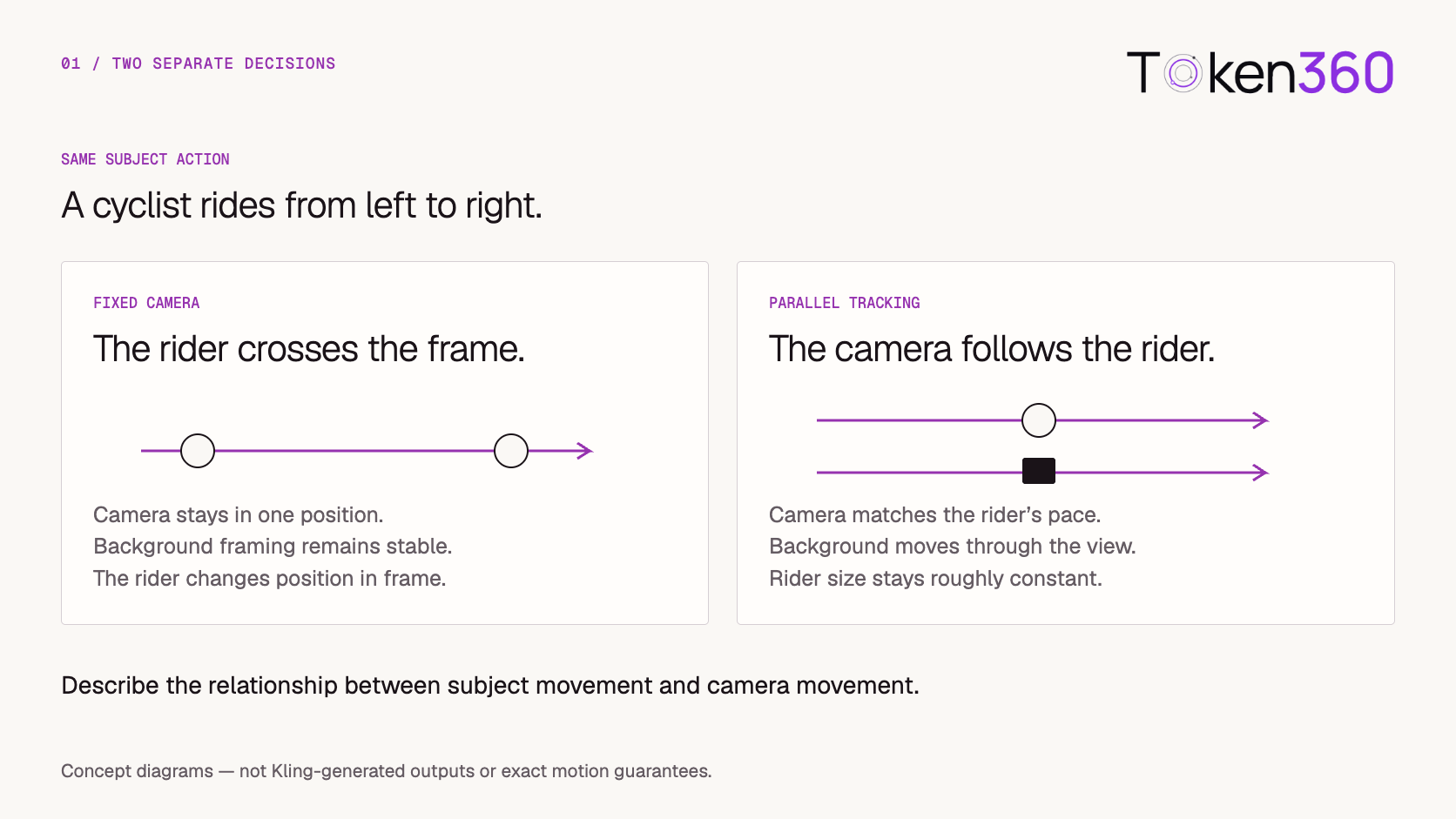
The subject’s movement and the camera’s movement are independent decisions.
A cyclist can travel along a path while the camera stays fixed, follows alongside, or moves behind. Those choices produce different views.
Original prompt: fixed camera
A cyclist in a yellow rain jacket rides slowly from the left side of the frame to the right along an empty riverside path. The camera remains fixed at eye level in a wide side view. The trees and river stay in the same background positions as the cyclist passes through the shot.
Review: Does the cyclist cross the frame while the background framing remains stable?
Original prompt: parallel tracking
A cyclist in a yellow rain jacket rides slowly from left to right along an empty riverside path. The camera travels parallel to the cyclist at the same pace, maintaining a medium side view. The rider stays approximately the same size in frame while trees move through the background.
Review: Does the camera follow the rider? Is the subject’s size reasonably stable? Is the movement continuous?
Avoid asking for a locked camera and a tracking move at the same time unless you explicitly describe a transition between them.
Describe Camera Movement in Observable Terms
Camera terminology is useful when paired with a visible result.
A zoom changes the field of view; a physical forward move changes camera position and perspective. If that distinction matters, describe the desired result explicitly.
For an orbit, state the direction and approximate extent. A small arc is easier to evaluate than a request to circle an object while also changing height and shot size.
These instructions express intent. They do not establish exact geometric control.
Adapt Image-to-Video Prompts to the Reference
In image-to-video, the source image already supplies much of the composition.
Start by deciding which parts should move and which should remain stable. Avoid unnecessarily redesigning the subject, setting, or lighting in the text.
Original prompt: animate an approved product still
Assumes the supplied image already contains the desired mug and composition.
The mug remains in its original position and orientation. The camera makes a slow, subtle forward move. The cloth stays still, and the lighting remains consistent. Preserve the existing composition as the view becomes slightly closer. One continuous shot.
Review: Does the result respect the source layout? Does the mug’s shape remain stable? Does the camera movement stay subtle?
Original prompt: restrained environmental motion
Assumes the supplied image shows a curtain beside an open window.
A light breeze gently moves the lower edge of the curtain. The window frame and furniture remain still. The camera is fixed. The curtain settles toward its starting position near the end of the shot.
Review: Is motion concentrated in the curtain? Does the room remain stable? Does the ending provide a usable edit point?
If the input tightly crops a subject, requesting a large camera move may require the model to invent unseen content. Choose the reference composition with the intended motion in mind.
Add Dialogue Only in a Supported Audio Mode
For dialogue, separate the speaker, spoken words, and background sound.
Original prompt: one speaker and one short line
A shopkeeper behind a flower stand looks toward a customer just outside the frame and says, “Your order is ready.” The camera holds a steady medium shot. Leaves rustle softly in the background. The shopkeeper is the only speaker.
Use it for: testing a short dialogue moment in an interface with supported audio generation.
Review: Are the words correct? Does the intended person speak? Is the line intelligible? Does the visible speech timing fit the audio?
Choose a duration that leaves room for the line and a brief pause. Adding more dialogue than the shot can comfortably contain creates an avoidable timing problem.
If the application needs silence, use the documented audio setting where available. Do not assume a prompt instruction overrides the endpoint configuration.
When delivery requires exact narration, compare generated speech with a separately produced audio workflow rather than assuming one approach will always satisfy the brief.
Plan the Sequence Before Using Multi-Shot Controls
Write the narrative beats before translating them into interface fields.
For a café scene, the plan might be:
Kling documents multi-shot and custom multi-shot workflows. Use the controls available in your selected interface; numbered prose is not automatically a structured storyboard request. See the official multi-shot guide.
An original shot description for the second beat could be:
Close view of the same wooden counter. A hand enters from the right and places a small pastry plate beside the cup. The cup remains on the left. The camera stays fixed while the hand withdraws.
Allocate enough time for the action to complete. If generating shots separately, preserve continuity references and leave stable moments around the intended cuts.
Review the sequence for matching object positions and lighting, not only the quality of each individual shot.
Diagnose the Visible Failure
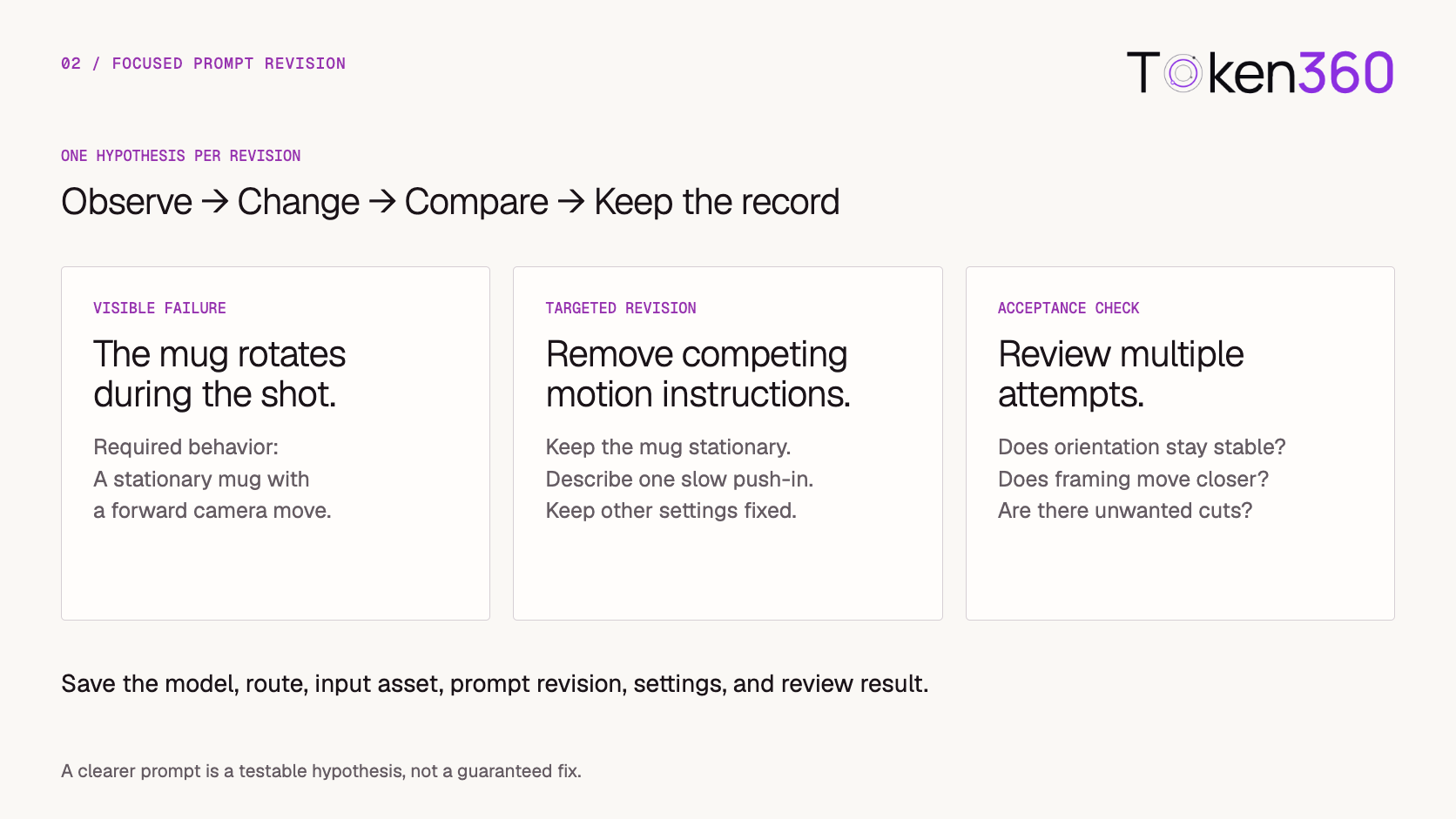
Describe what failed before rewriting the prompt.
These are hypotheses, not guaranteed fixes.
Also check the configuration. An unexpected cut may be related to an enabled multi-shot mode. Missing audio may reflect the selected route. More prompt text will not fix an unsupported feature.
Prefer clear positive descriptions of the intended behavior. If the interface provides a negative-prompt field, use its documented semantics rather than inventing universal exclusion syntax.
Change One Meaningful Variable at a Time
Keep a baseline prompt and test a specific revision against it.
Suppose a mug rotates when the requirement is a stationary product with a forward camera move.
A targeted revision is:
The mug stays stationary with its handle pointing to the right throughout the shot. The camera slowly moves directly toward it. The mug remains fully visible.
Keep the reference, model, mode, duration, and other settings unchanged for this test.
Run multiple attempts within a fixed allowance. Review both versions against the same checks:
-
Does the mug’s orientation remain stable?
-
Does the framing become closer?
-
Does the product remain fully visible?
-
Are there unexpected cuts?
One favorable output does not establish that the revision reliably improved the behavior. Keep failed attempts and sample counts alongside selected outputs.
If the interface supports a seed, record it, but do not assume the same seed guarantees identical behavior across models or versions.
Keep a Reusable Prompt Record
A prompt library becomes more useful when it includes operating context.
For a Token360 workflow, begin with the model catalog and confirm the selected route’s exposed settings through the API documentation.
Keep your creative brief separate from provider-specific fields. This makes later testing easier when a route changes or a new model version becomes available.
Explore models on Token360 and test one prompt against one clearly defined acceptance check.
Frequently Asked Questions
What should a Kling prompt include?
Start with the subject, one visible action, a camera choice, and the details that should stay consistent. Add an ending when the final composition matters.
Should every prompt include camera movement?
No. A fixed camera is a useful starting point when the subject’s movement is the main requirement. Add camera movement when it serves the shot.
Are longer Kling prompts better?
Length alone does not establish clarity. Add details that resolve an ambiguity or define a reviewable requirement. Remove instructions that conflict with the intended action.
Can a prompt preserve a product label perfectly?
No prompt can guarantee exact label preservation. Review the output and use approved compositing when exact text or artwork is required.
Can I use the same prompt for text-to-video and image-to-video?
You can preserve the same creative intent, but adapt the description. Image-to-video prompts should account for information already supplied by the reference.
How should I compare prompts across versions?
Keep the brief and acceptance rules fixed, record the exact versions and settings, and review multiple attempts. Treat earlier results as evidence for the configuration that produced them.
What to read next
Related model integration and prompt guides


 Tutorial
 Tutorial
 Tutorial