When exact wording matters, treat text as an asset you can verify rather than a detail a video prompt will necessarily preserve. Generate the scene, inspect the lettering throughout the usable shot, and choose whether approved artwork belongs inside the generated image, on a separate screen overlay, or on a tracked surface.
This guide uses an original packaging example to explain those choices. It includes a proposed comparison plan and a worked pixel-size calculation. No video generation, tracking test, or model ranking was performed for this article; the illustrations explain the workflow rather than show measured outcomes.
Read first: the image-to-video workflow covers reference inputs, while the AI model evaluation framework helps turn visual requirements into acceptance checks.
Define which kind of text must survive
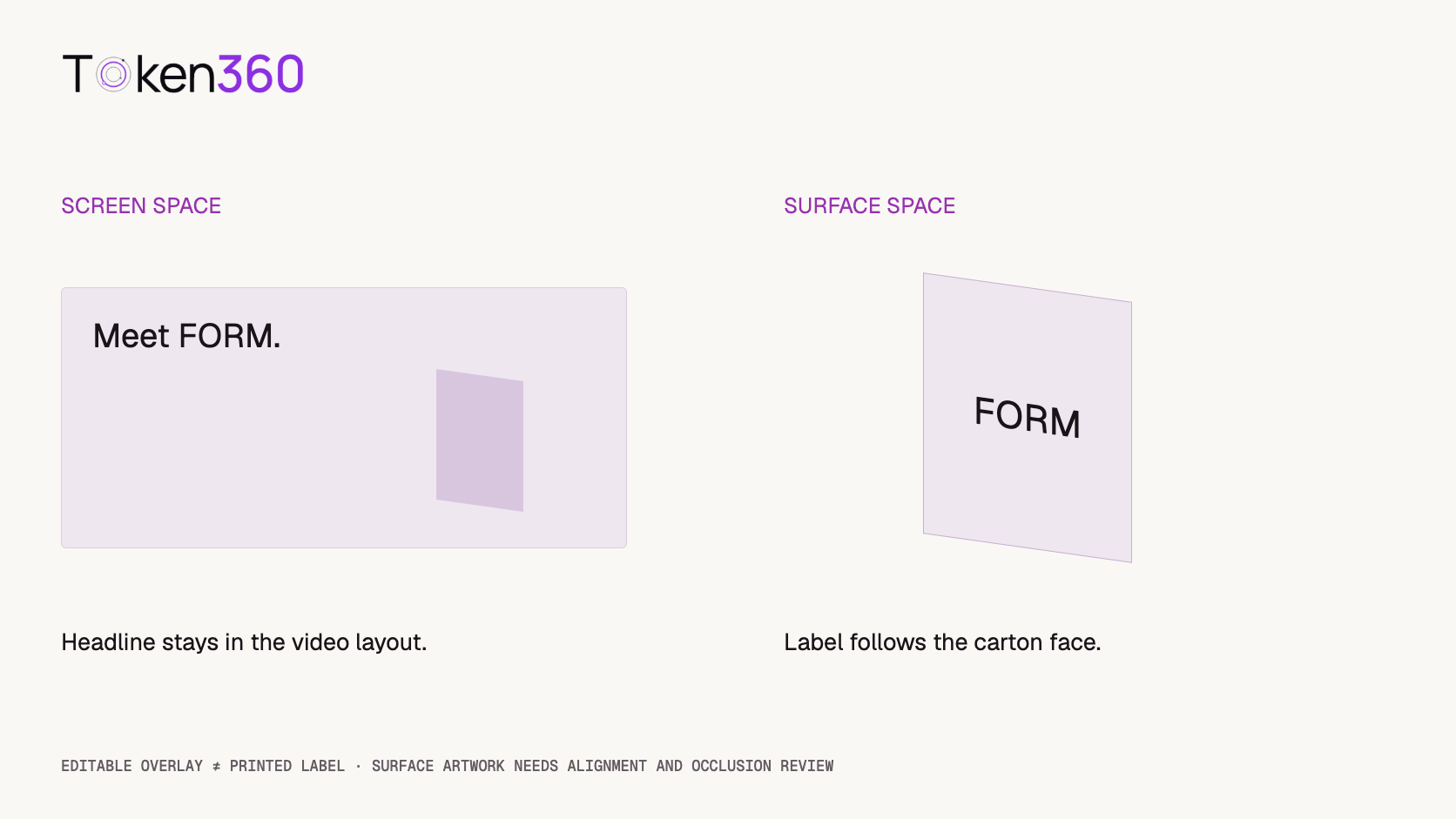
A headline over a video, a label printed on a carton, and an incidental background sign have different requirements. A headline may stay fixed relative to the screen. A carton label must follow the package’s movement and perspective. Background lettering may be nonessential, but it should still be reviewed if viewers could interpret it as meaningful.
| Text role | Typical requirement | Candidate workflow |
|---|
| Headline or call to action | Exact wording, readable placement, controllable timing. | Separate text layer in the edit. |
| Product label or logo | Correct artwork that remains attached to the surface. | Inspect generation, or composite approved artwork with tracking. |
| Decorative background text | Acceptable appearance without misleading unintended wording. | Review the generated scene; simplify or replace if needed. |
Write down the requirement before generating. “Looks like packaging” is different from “shows exactly FORM on every readable view of the front face.” The latter requires a reference string and an approved visual asset, not only an aesthetic judgment.
Separate spelling, design, and attachment
A label can spell the right word while using the wrong logo shape. It can use the correct artwork but slide across the carton. It can remain attached yet become too small to read after cropping. Review these as separate failure modes so that a fix addresses the actual problem.
For the fictional example in this guide, the required word is FORM, set in an approved design file on the front of an ivory carton with a lavender side panel. The word is an illustrative label, not an actual customer product or a model performance claim.
Keep a plain-text reference for spelling and the original artwork for appearance. Retyping a logo with a similar font does not preserve the original design. Use the approved logo file when its exact proportions, spacing, or custom letterforms matter.
Start with a clean reference and a simple movement
A clean input makes review more meaningful. Check that the reference already contains the correct lettering, sufficient contrast, and a clearly visible surface. An unclear reference cannot establish what the finished label should look like.
Runway’s image-to-video prompting guide explains that the image supplies visual context while the prompt guides motion, and recommends high-quality inputs without visual artifacts. That guidance supports careful reference preparation; it is not a guarantee of exact text preservation.
The carton remains upright while the camera moves gently from a front view toward a slight three-quarter view. The front face stays visible and the carton keeps its straight edges and proportions. Soft studio light remains steady. The movement is slow and continuous.
This is a proposed motion prompt. It does not include an invented “lock logo” control or claim that prose can enforce exact lettering. Use only parameters documented for the selected route, as described in Token360’s model capabilities documentation.
Begin with a modest movement that matches the shot’s purpose. A large orbit, severe foreshortening, or an object passing in front of the label adds review and compositing work. Restricting those changes is a production choice, not proof that a particular model will preserve the artwork.
Choose between a screen overlay and a surface label
If the text is a headline, add it as an editable layer in the timeline. This keeps the spelling and design under editorial control. Review its position against the final crop, player controls, and other graphics. A screen overlay should not be presented as if it were printed on a moving product.
If the lettering belongs on the carton, it must follow that face. Adobe’s motion tracking documentation describes transferring tracked movement to another layer and using perspective corner pinning to fit a four-sided region. This is an editing technique, not a Token360 API capability claim.
A flat carton face is a useful planning example. A curved bottle or flexible bag may require a different deformation method. Four corners alone do not describe every changing surface, and tracking cannot make an unstable generated object geometrically correct.
Composite with the scene, not just over it
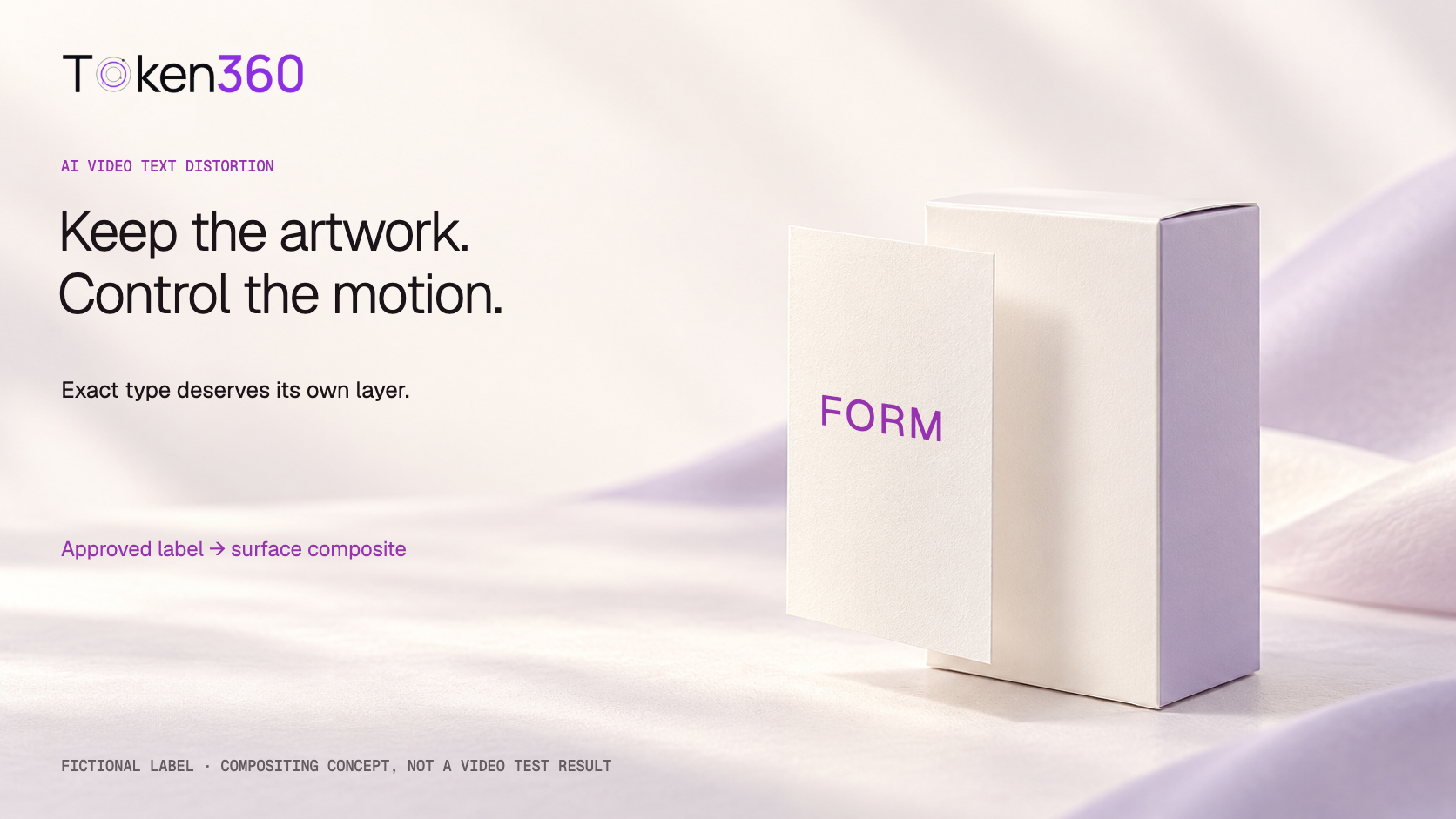
For a blank-surface workflow, preserve the approved label separately and generate or obtain a clean product shot. Track the relevant face, attach the artwork, then inspect the result during the entire movement. If the original shot already contains incorrect lettering, resolve it before adding the replacement; a second layer does not automatically remove visible characters underneath.
Check whether the artwork follows perspective, remains inside the intended print area, and disappears appropriately when another object covers it. Match the scene’s sharpness and lighting where necessary. A perfectly crisp label over a blurred moving carton can look detached even when the corners align.
Keep the original artwork and the compositing project. The rendered result is still an image sequence subject to scaling, compression, blur, and occlusion. Separate artwork gives control over what was supplied; it does not eliminate the need to review what viewers actually see.
Check the final pixel size before blaming the model
Suppose a hypothetical delivery is 1080 pixels wide and the label spans 15% of that width. Its on-screen width is 1080 × 0.15 = 162 pixels. If a proportional preview is only 360 pixels wide, the same label spans 54 pixels. This is a threefold reduction in each linear dimension.
Those numbers describe label width, not letter height and not a readability threshold. Typeface, stroke weight, contrast, compression, motion, and viewing conditions all affect legibility. Do not turn the calculation into a universal minimum size rule.
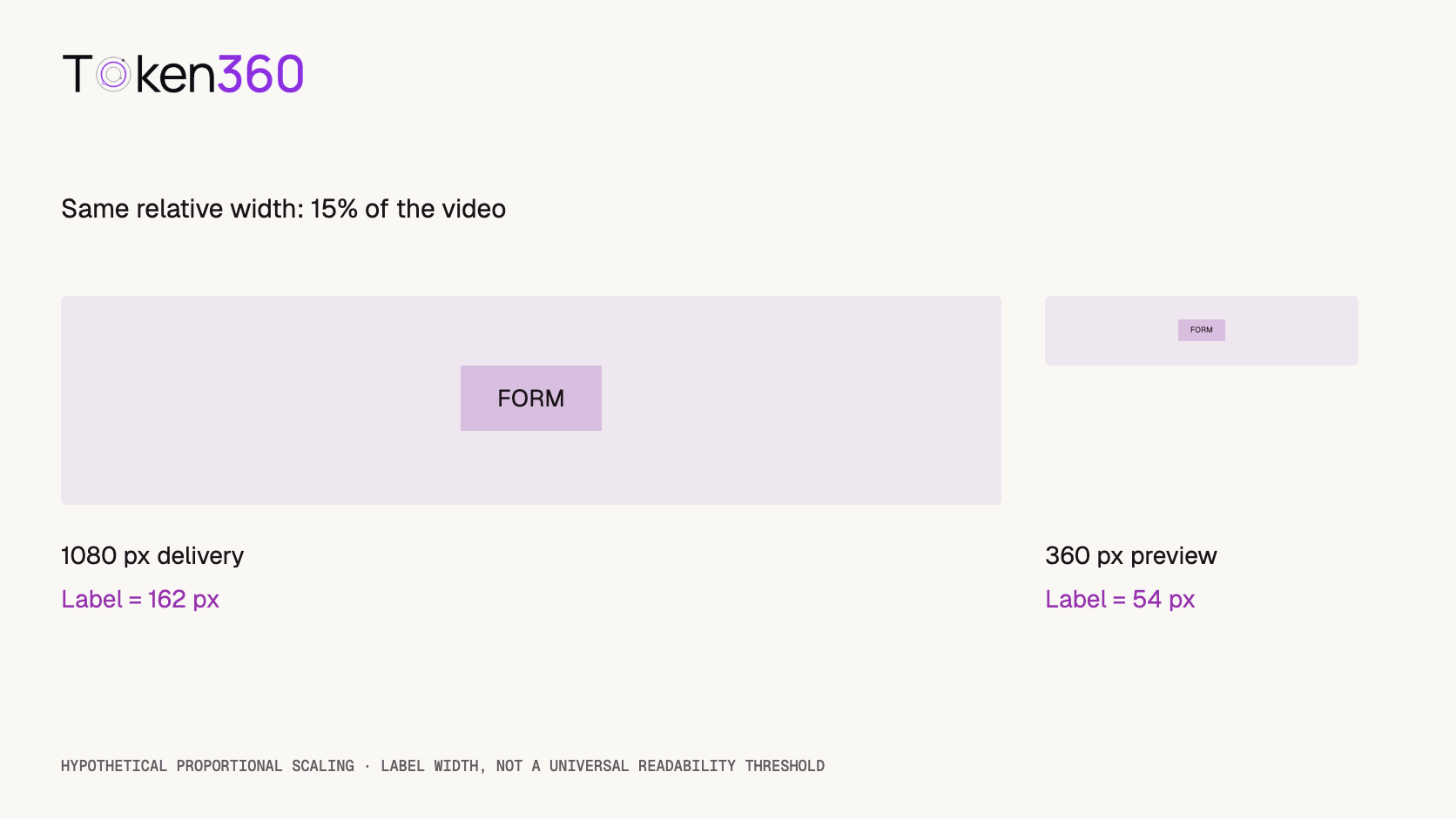
Inspect the final export at the size and crop viewers will encounter. If a different aspect ratio changes the framing rather than uniformly scaling it, recalculate the label’s actual size. Increasing the file resolution does not guarantee that a small, obscured, or malformed word becomes useful.
Use a review record that catches temporal changes
Save the approved spelling, artwork version, reference image, model identifier, request settings, output asset, and export version together. Record which interval is intended for publication. A good opening frame cannot establish that the label stays correct later in the shot.
Watch the full usable interval at normal speed, then inspect moments with the strongest angle change, smallest text, motion blur, or partial obstruction. Check suspicious transitions frame by frame. If your acceptance criterion requires every frame to match, a few sampled screenshots are insufficient evidence.
OCR can help flag possible spelling changes, but it does not validate a logo’s design or physical attachment. It can also miss errors or fail to read valid text. Treat it as an auxiliary check and retain a human review of the actual rendered sequence.
| Check | Question | Record |
|---|
| Content | Does the visible word match the reference? | Pass, fail, or unreadable; time interval. |
| Artwork | Do proportions and letterforms match the approved design? | Observed deviation and supporting frame. |
| Attachment | Does the label follow the surface and its occlusions? | Any sliding, floating, or incorrect reveal. |
| Delivery | Can the intended viewer read it in the final export? | Export size, crop, viewing size, and reviewer. |
Compare workflows without inventing a success rate
An exploratory plan could generate three candidates from a labeled reference and three from a blank-front reference using the same documented model settings and movement instruction. That is six planned generation requests. The references differ intentionally, so this compares production workflows rather than isolating the causal effect of one prompt phrase.
Retain failures and rejected candidates. Select a usable blank-front candidate using recorded geometry and motion criteria, then composite the approved label onto it. Count that as an editing result derived from a candidate, not another independent video generation.
Measure generation waiting time separately from hands-on editing and review time. Record actual charges if you run the test. A workflow requiring fewer reruns may still require more editing effort, and neither result can be inferred from this proposed plan.
Report how many candidates were available, how many passed the stated checks, and how the final asset was produced. A six-request exploration is not a universal ranking of models or proof that one workflow is always cheaper.
Decide what to fix before regenerating
If the carton changes shape, improve or replace the scene before tracking a label onto it. If the geometry is stable but the lettering is wrong, evaluate artwork replacement. If the word is correct but too small, change framing or typography placement before assuming another generation will solve it.
For headlines, keep the copy editable until the final layout is approved. For product labels, preserve the artwork and its attachment method. This separates decisions that belong to generation from decisions that belong to design and editing.
Frequently asked questions
Can a prompt guarantee correct text in AI video?
Do not assume a guarantee. Check the selected model’s documentation and inspect the actual output over the intended interval. Prompt wording alone is not evidence that every letter remains correct.
Should I add logos after generating the video?
Consider it when exact artwork is required. A screen logo can remain on a separate layer; a logo printed on a moving object needs appropriate attachment, masking, and visual integration.
Is an image reference enough to preserve a product label?
It establishes the intended appearance but does not prove the output will preserve it throughout motion. Compare the generated sequence with the approved reference.
Can motion tracking fix a changing product shape?
Tracking follows movement; it does not guarantee a correction to the underlying object. Review surface stability before investing in label compositing.
Does OCR prove a logo is correct?
No. OCR may help check readable characters, but it does not establish exact design, spacing, attachment, or visibility throughout the clip.
Why is correct text unreadable in a smaller preview?
Scaling reduces its pixel dimensions, while motion and compression can reduce clarity further. Review the final viewing size rather than only a large source frame.
Read next: use the evaluation framework to document acceptance and the video cost guide to track candidate spend separately from editing effort.


 Prompt Guide
 Prompt Guide
 Prompt Guide