For useful AI video motion blur, describe what moves, how the camera moves, and which details must remain readable. Then inspect the actual sequence. A soft frame can result from directional motion, missed focus, interpolation, or unstable generated geometry; these problems need different fixes.
This guide uses a lavender toy car to separate those cases. It includes original prompt examples, a simplified exposure calculation, and a proposed comparison plan. The illustrations are conceptual, and no video generation or blur-processing test was performed for this article.
Read first: the image-to-video workflow explains reference preparation, while the evaluation framework helps define what an acceptable output must retain.
Identify the softness before trying to remove it
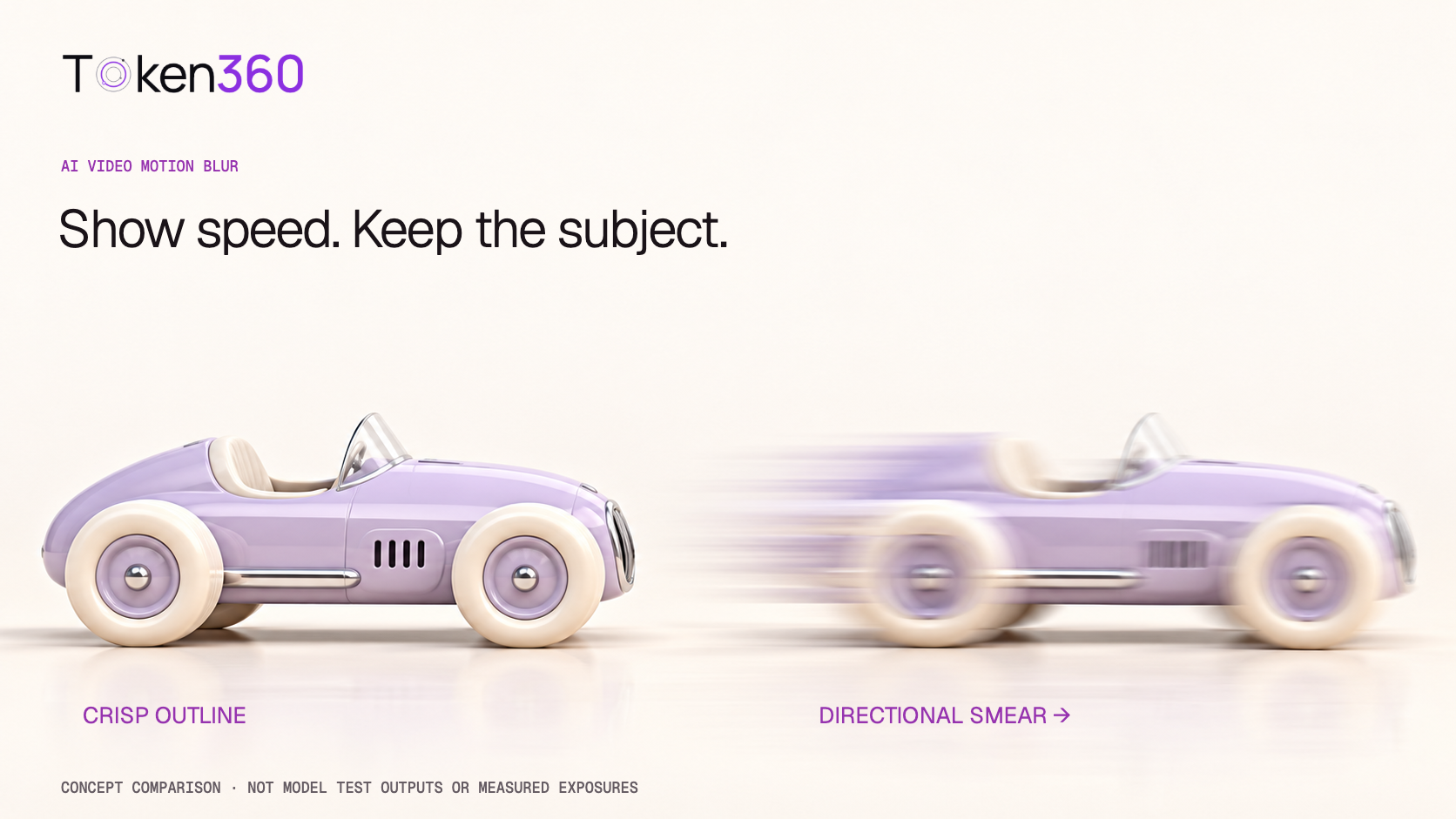
Motion blur describes image detail spreading along motion during an exposure or its digital simulation. Defocus has a different cause: detail is outside the plane or range of acceptable focus. A generated clip can imitate either appearance without having been recorded by a physical camera.
Other artifacts can resemble blur. Blended frames may show overlapping outlines, while a model may change the shape of a wheel or body panel between frames. Compression can further obscure small details. Do not diagnose the whole sequence from one paused image.
| Observation | What to investigate | Useful next check |
|---|
| Edges stretch along movement | Motion-related smearing. | Compare the smear direction with subject and camera motion. |
| Stationary detail is soft too | Focus, scaling, encoding, or overall image softness. | Inspect the original file and a stable background area. |
| Two offset outlines appear | Frame blending or another temporal artifact. | Compare the source with the processed export. |
| The object changes structure | Generated geometry or processing distortion. | Follow the same feature through adjacent frames. |
These are diagnostic questions, not automatic classifications. Several effects can coexist. Keep the original output available so that later editing does not erase evidence of where an issue first appeared.
Describe motion relative to the camera
A car crossing a fixed camera and a camera following that car are different shots. In the first, the car travels across the image. In the second, its body may remain near the same screen position while the surroundings move. That distinction matters when deciding where directional blur should appear.
For the first experiment, choose one relationship. A fixed side view makes the car’s path easy to inspect. A tracking view can prioritize body detail while allowing the background to communicate speed. Neither description guarantees that a model will reproduce a physically exact exposure.
A pale-lavender toy car travels steadily from left to right across an ivory surface. The camera remains fixed in a side view. Subtle horizontal motion blur follows the car’s movement while its body silhouette remains recognizable. The stationary background stays clear.
For a different shot, change the camera relationship explicitly:
The camera tracks beside a pale-lavender toy car moving to the right, keeping its body centered and clearly defined. The distant background flows horizontally behind it. The car keeps the same shape and proportions throughout the shot.
These are original proposed prompts, not tested recipes. They should be evaluated as two different shot designs rather than interchangeable wording for the same camera behavior.
Check whether the reference already implies speed
An input image with streaks, dust, or a strongly blurred background already suggests motion. A prompt requesting a parked, motionless car may conflict with those cues. Runway’s image-to-video guide discusses this exact kind of contradiction between implied image motion and a requested action.
Choose a reference that supports the intended shot. For a controlled baseline, use a clear car silhouette and an uncomplicated background. Preserve that reference file while comparing motion wording so you can distinguish prompt changes from changes in the visual input.
If you later use a reference with deliberate blur, record it as a new condition. Do not attribute the resulting appearance only to the prompt when both inputs changed. A reference image is part of the experimental configuration.
Use shutter terminology as an explanation, not an API promise
In a simplified camera model, exposure time depends on frame rate and shutter angle. At 24 frames per second with a 180-degree shutter, the exposure occupies half a frame interval: 1/48 second. Adobe’s Pixel Motion Blur tutorial uses shutter angle to explain the effect’s simulated exposure behavior.
This does not mean typing “180-degree shutter” makes an AI video physically captured at that setting. It is a creative cue unless the selected system documents a corresponding control. Check Token360’s model capabilities documentation and the exact model schema before adding fields such as shutter angle or exposure time.
Also separate a video editor’s blur controls from generation settings. An editor may expose a shutter-like parameter for a processing effect even when the generation route does not. Record where a setting was applied instead of treating all similarly named controls as equivalent.
Estimate blur length with a transparent example
Assume a point moves horizontally at a constant 480 pixels per second relative to a fixed image. Ignore acceleration, depth changes, rolling shutter, and lens effects. Its idealized travel during an exposure is velocity multiplied by exposure time.
At an exact 24 fps, the point moves 20 pixels between successive frame positions. A 90-degree exposure covers one quarter of that interval, or 5 pixels. A 180-degree exposure covers 10 pixels; a 360-degree exposure covers 20 pixels.
| Illustrative shutter angle | Exposure at 24 fps | Travel during exposure |
|---|
| 90° | 1/96 second | 480 × 1/96 = 5 pixels |
| 180° | 1/48 second | 480 × 1/48 = 10 pixels |
| 360° | 1/24 second | 480 × 1/24 = 20 pixels |
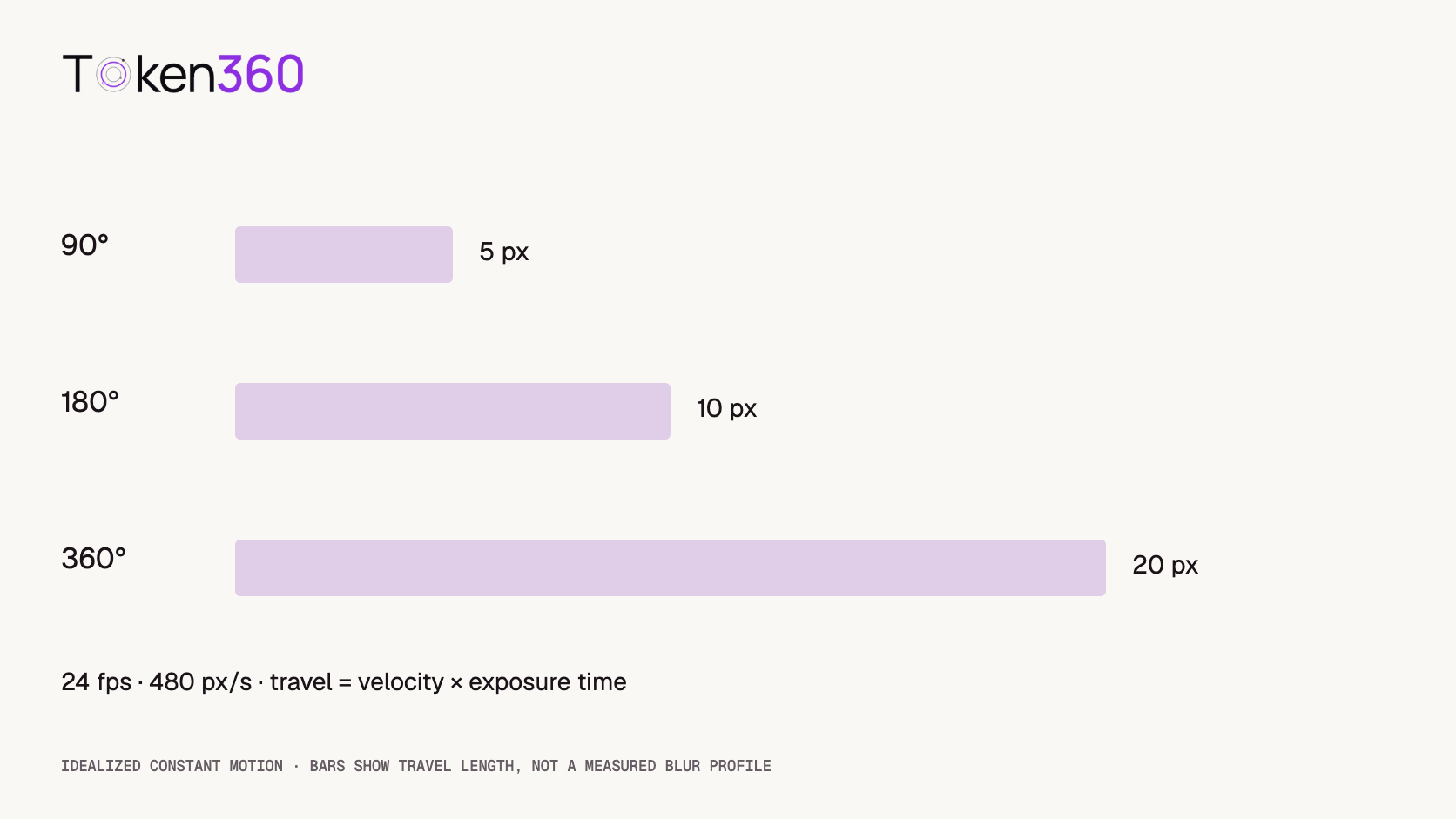
This is a geometric illustration of exposure travel, not a measured AI-video blur kernel or a prediction of a model’s output. The calculation does not specify the smear’s brightness profile, position around the frame timestamp, or perceptual quality. Those depend on additional assumptions.
The practical lesson is limited: relative motion and exposure duration both affect how far detail can spread. A frame-rate label alone cannot establish how much blur is appropriate or how a generated image was formed.
Keep blur separate from slow playback
Slowing an existing clip changes when its frames appear. It does not automatically remove the blur already present in those frames. A heavily smeared car may remain smeared when the clip is played at half speed.
Likewise, a higher-frame-rate export does not establish sharper source detail. If intermediate frames are estimated or blended, inspect their edges for new artifacts. Keep the source, retimed version, and final export distinguishable in the project.
If the creative goal is a readable product shot, decide which body details must remain recognizable at normal playback. If the goal is an abstract speed impression, stronger smearing may be acceptable. Apply the criterion consistently rather than treating maximum sharpness as the universal objective.
Add blur in post only after checking motion integrity
Post-processing can offer a separate way to adjust the appearance of an otherwise coherent shot. Adobe describes Pixel Motion Blur as estimating pixel movement between frames to synthesize blur. That is a useful editing option, not evidence that every generated sequence will process cleanly.
Inspect areas where wheels overlap the body, where the car crosses detailed edges, and where objects appear or disappear. Estimated movement can be ambiguous around occlusions or changing geometry. Compare the processed output with the original at those moments before deciding the effect improves the shot.
If the car grows an extra wheel or changes shape, adding blur is not a reliable repair. It may make the defect less obvious at one viewing size while leaving the underlying inconsistency. Replace or revise an unacceptable source rather than claiming the defect was corrected by softness.
Run a small, documented comparison
For an exploratory test, keep the reference, model, camera relationship, and supported settings fixed. Compare a neutral motion prompt with a version adding the instruction for subtle directional blur. Generate two candidates per condition: four planned requests in total.
Review every available candidate, including unsuccessful or rejected outcomes. Record whether the movement proceeds in the requested direction, the body remains recognizable, and the static background behaves as intended. Keep “uncertain” available when the evidence does not support a confident classification.
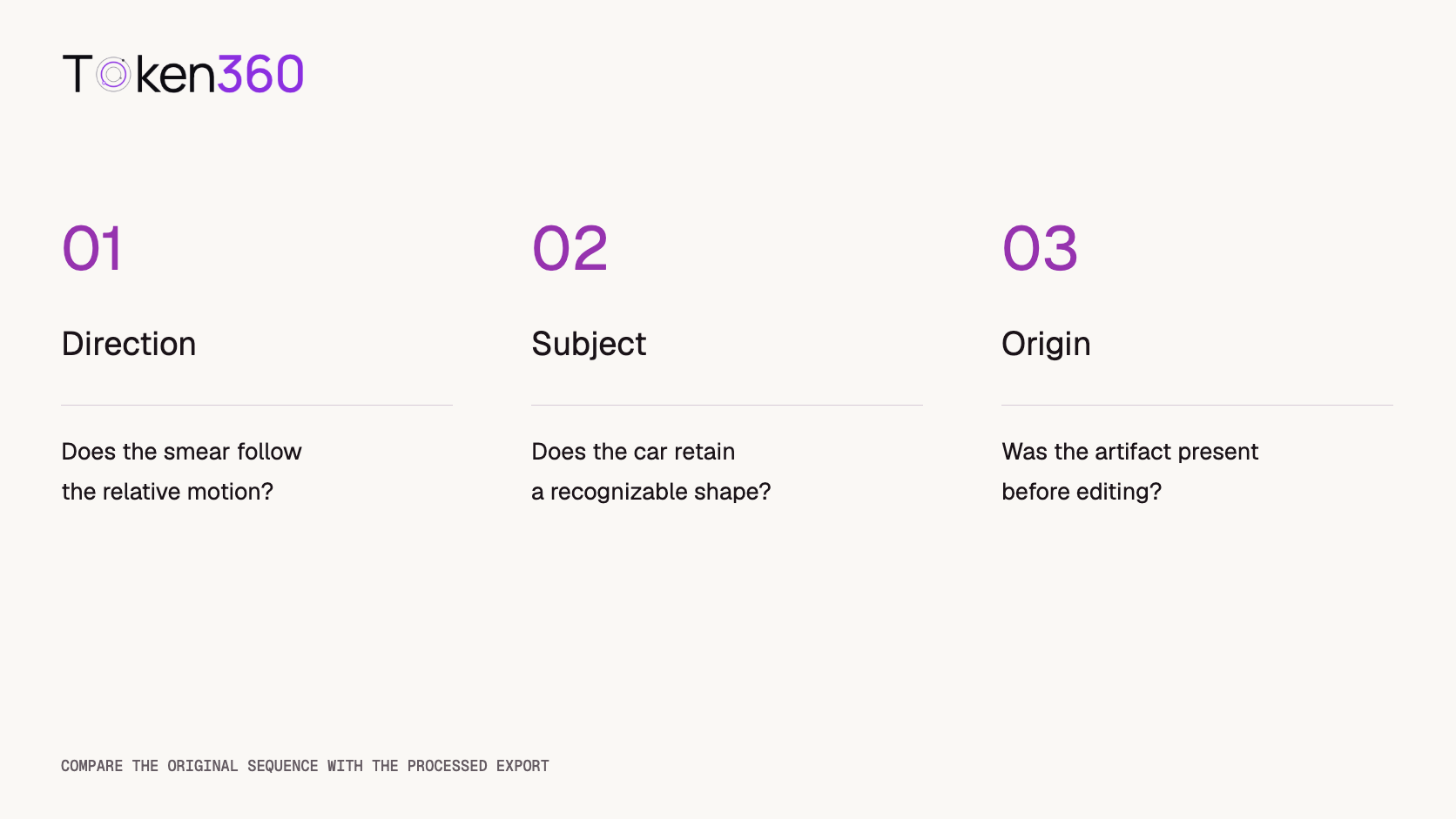
If testing post-processing, select one coherent source using recorded criteria and create an edited derivative. Count that separately from the generated candidates. This separates a generation comparison from an editing demonstration, although the small sample still cannot establish a model-wide success rate.
Log the actual waiting time, charges, and editing effort if you execute the plan. None are supplied here because this article has not run that test. Publish representative failures alongside accepted examples when making claims about what worked.
Review the version viewers will actually see
Check three stages separately: the downloaded source, the edited master, and the delivery export. If the source is clear but the export looks smeared, compare export scaling, compression, and temporal processing before spending money on another generation. If the defect is already present in the source, changing the delivery format may not resolve it.
For the toy-car shot, follow the windshield edge, the boundary between the body and the wheels, and a stationary background feature. These give you distinct places to look for subject smearing, shape instability, and whole-image softness. Record the time interval where each issue appears rather than writing only “too blurry.”
Review at the intended viewing size as well as enlarged. An enlarged crop can help diagnose an edge, but the editorial decision should reflect the actual placement. Keep the diagnostic crop and the final presentation judgment separate in your notes.
Frequently asked questions
How do I prompt motion blur in AI video?
Describe the moving subject, its direction, and the camera relationship, then state where subtle directional blur should appear and what should remain readable. Verify the output rather than assuming the phrase controls a physical shutter.
Is every blurry AI video a motion-blur problem?
No. Defocus, scaling, compression, frame blending, and unstable geometry can also reduce clarity. Compare the original sequence with later exports to narrow the cause.
Does a 180-degree shutter prompt guarantee a 1/48-second exposure?
No. The 1/48-second figure follows a simplified 24 fps camera calculation. Prompt language alone does not establish that exposure in a generated video.
Will slowing the video remove motion blur?
Not automatically. Retiming changes playback timing; blur already present in source frames can remain visible or become easier to notice.
Should I add motion blur before fixing shape changes?
First determine whether the source is acceptable. Blur can conceal detail but does not reliably restore stable geometry or correct a malformed subject.
What should I record for a blur comparison?
Save the reference, prompt, model settings, original outputs, editing steps, and review criteria. Distinguish generated candidates from processed derivatives and retain failures.
Read next: use the evaluation framework to document visual acceptance and the video cost guide to budget candidate generation separately from editing.


 Prompt Guide
 Prompt Guide
 Prompt Guide